
Setting up your services
This guide will walk you through how to configure the services your clinic offers so you can schedule appointments effectively.
What Are Services?
Services represent the appointment types your clinic provides — for example:
- Initial Assessment
- Follow‑Up Treatment
- Virtual Check‑In
- Classes (Note: If your clinic offers classes, you’ll first create services for those classes before setting up the class schedule.)
Getting start
Navigate to Settings > Scheduling settings > Our Services.
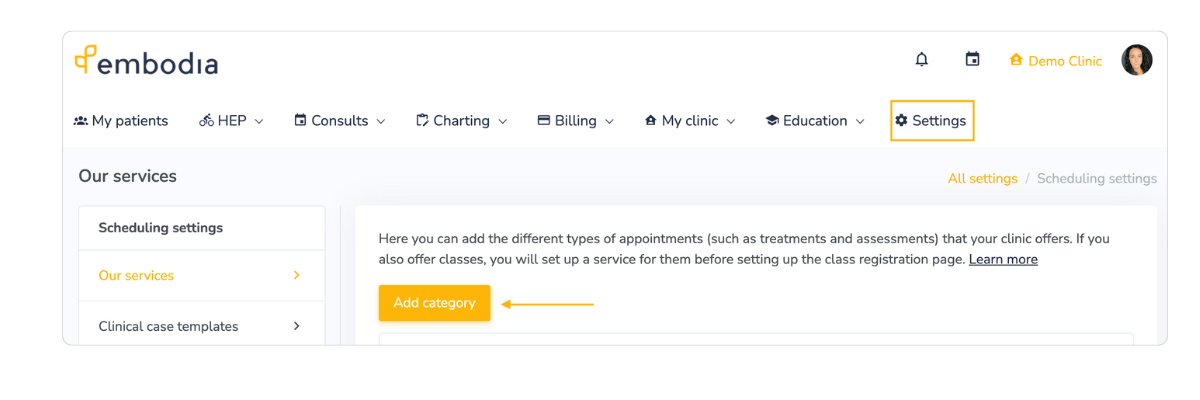
Here, you’ll add, edit, and organize all services available for booking.
Step‑by‑Step Instructions
1. Organize Services by Category
Services are grouped under Categories (e.g., Pelvic Health Physiotherapy, Registered Massage, Yoga Classes).
- Click Add Category
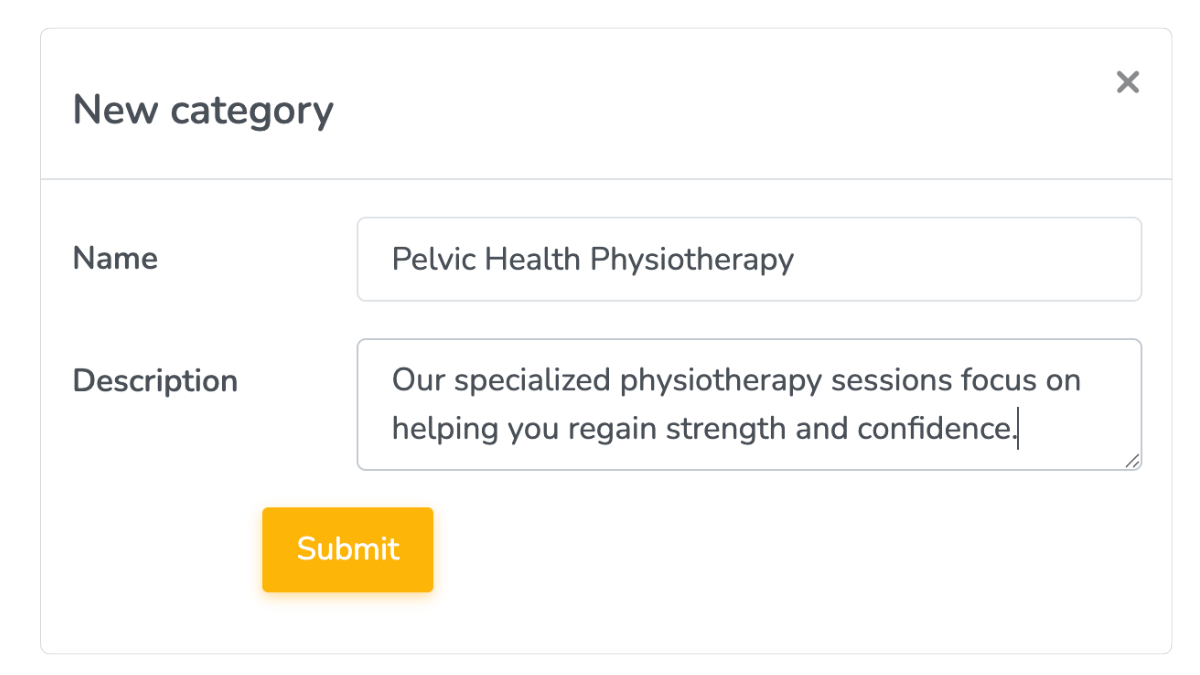
- Enter a Name (required) and Description (optional)
- The description appears to patients if online booking is enabled.
2. Add Services to a Category
Once a category exists:
- Click Add a Service beneath the category
- Complete the form fields below to configure the service’s settings.
When setting up a service in Embodia, each field helps define what the service is, how it works, and how patients can book it.
Core service fields
- Name: The service title (e.g., “Initial Assessment”).
- Internal Name / Code: For internal use only (not visible to patients).
- Consult Type: In‑Person, Virtual, or Phone.
- Description: Text patients see during online booking. Keep it short and clear.
- Duration: Length of the appointment in minutes.
- Reset Time: Optional buffer time after the appointment.
- Price & Currency: How much the service costs.
- Tax Rate: if a tax rate should be applied.
Consent & Communication
- Consent Form: Attach a form if needed. Learn more about consent forms here.
- Skip Consent if Previously Accepted: Prevents repeat consent requests.
- Consult Email Settings: Assign custom emails for this service. Learn more about consult emails here.
- Consult Setting Template: Apply pre-configured settings for this type of consult. Learn more about consults settings here.
Scheduling & Visibility
- Calendar Colour: Color-code appointments in your schedule (not visible to patients).
- Available in Online Booking: Allow patients to book this service online. Learn more about online booking on Embodia here.
- Active: Uncheck to deactivate the service.
Online Booking Options
- Who Can Book Online: No one, existing patients only, or all patients.
- Payment on Booking: No payment, card on file, partial, or full payment required.
- Clinic Packages: Allow packages to be used for this service. Learn more about packages here.
- Upsell Clinic Packages: Optionally promote related packages when booking.
Tips & Optional Settings
- Internal Codes can help identify services across locations or practitioners.
- If multi‑practitioner consults features are enabled, you can assign practitioner groups to services.
- For class services, consider customizing settings specifically for classes (separate from one‑on‑one consults).
What Happens After You Save a Service?
Once saved, your service will:
- Appear in the service list
- Be available when booking appointments
- Show in the online booking portal (if enabled)
You can always edit any of your services by clicking on the 'Edit' icon next to the service. You can change the order of your services by clicking and holding on the 3 horizontal lines next to the service.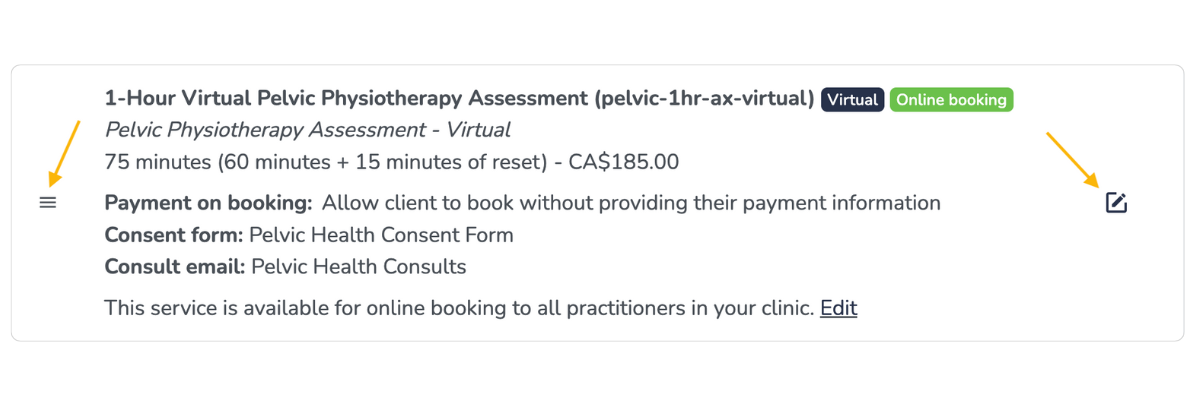
How do I increase the price of a service?
Suppose you plan to increase the price of one of your services from $100 to $110, effective January 1st. The simplest approach would be to change the "Price" field from $100 to $110 on January 1st. However, this approach has important limitations. With this approach:
- If a patient visits your online booking page on December 31st and books a consult for January 2nd, they would see the old price ($100). If an invoice is generated on January 2nd, it would reflect the new price ($110), which may cause confusion.
- If you collect payment at the time of booking, a patient booking on December 31st for January 2nd would be charged the old price ($100).
- If a patient had a consult on December 31st but the invoice was not generated until January 2nd, the invoice would incorrectly use the new price ($110).
A more streamlined approach is to use the "New price" and "Effective date" fields in conjunction with the "Price" field. In this case, you would keep the "Price" at $100, set the "New price" to $110, and set the "Effective date" to January 1st. With this approach:
- A patient booking a consult before January 1st for a date before January 1st would see the old price ($100).
- A patient booking on December 31st for a consult on or after January 1st would see the new price ($110).
- If payment is collected at booking, the invoice would correctly reflect the new price for consults occurring on or after January 1st.
- If a consult occurred on December 31st but the invoice was generated on January 2nd, the invoice would still correctly use the old price ($100).
This approach ensures pricing is based on the date of service, not the date of booking or invoicing, reducing confusion and billing errors.
When should the "New price" be moved to the "Price" field?
Once the "Effective date" has passed and the new pricing is fully in effect for all future consults, the "New price" should be moved into the "Price" field to allow for future price increases. Before doing so, make sure that all outstanding invoices for services provided prior to the effective date have been generated.
In practice, this means that after January 1st:
- Confirm that all consults that occurred on or before December 31st have been invoiced using the old price. We recommend allowing a short buffer period after the effective date to ensure all pre-effective-date consults have been invoiced before moving the New price into the Price field.
- Update the Price field from $100 to $110
- Clear the "New price" and "Effective date" fields